
Settings Tab
- On the left navigation menu choose “WOO CUSTOMER HISTORY (PREMIUM)” and then “SETTINGS”
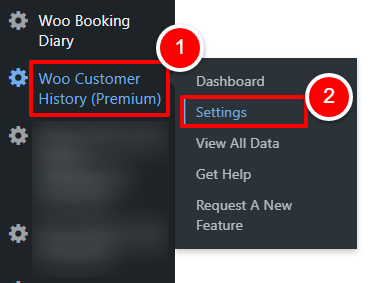
OR
Open the plugin dashboard and click the “SETTINGS” tab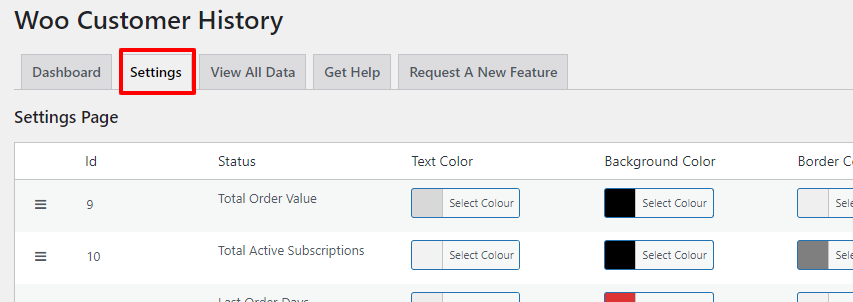
- All settings will load. To change any settings, apply your changes and click “SAVE”
Settings Explained
Settings Page
Each row on the setting shows a different Key Performance Indicator (KPI) that you can use within your screens.

-
Key Performance Indicator
This defines the key performance indicator you want to modify. For a full explanation of each indicator and the logic which sits behind, click here. -
Text Colour
The colour of the text contained within the circle -
Background Colour
The background colour of the circle -
Border Colour
The border colour of the circle -
Active: User List
Defines whether the circle will show on the active users list. This screen is the list of users as a list as part of WordPress core. To see this particular screen, click here for more information. -
Active: User Profile
Defines whether the circle will show on the users profile in the backend WordPress. This screen is the detail view of the user, part of WordPress core. To see this particular screen, click here for more information. -
Active: Individual Order
Defines whether the circle will show on an individual order for the backend store admin. To see this particular screen, click here for more information. -
Active: Order List
Defines whether the circle will show on the list of all orders. To see this particular screen, click here for more information.
Settings Page
-
Regenerate All Users Data
This button regenerates all user data.
If you already have customers in your store after installing the plugin, click this to generate all data up-to-date.