Adding shortcode to a Widget
- Firstly, create the required short code using the short code generator. and copy this to your clipboard
- On the left menu, click “APPEARANCE” then “WIDGETS”

- Find the place in the specific widget where you would like to add the shortcode
(for our documentation here, we have added a TEXT widget to FOOTER 1.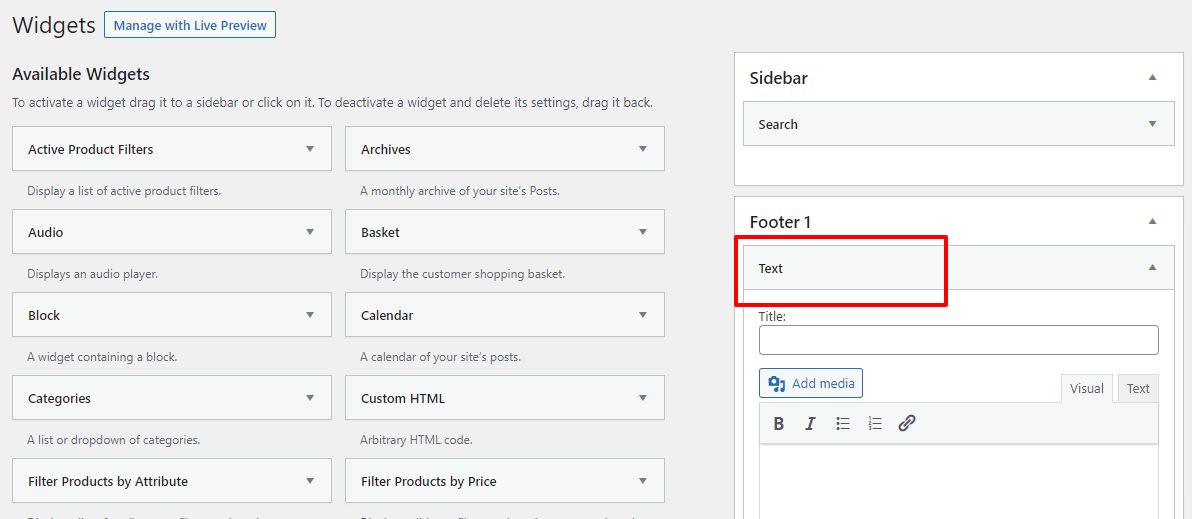
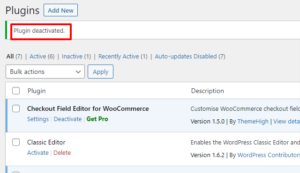
- The upload will now start and the page will load. Once complete, you should see “Plugin deactivated”.
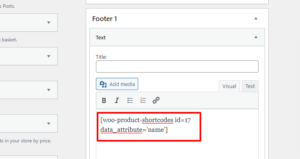
- Paste the shortcode into the text area
- For the widget, click the “SAVE” button
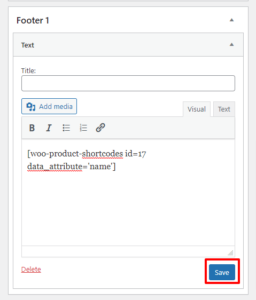
- The widget will save and show “SAVED” once it is complete

- On the front end WordPress site, locate where your widget is to check the shortcode has worked.
For our documentation, the footer can be seen showing the shortcode for the product name using the example shortcode above.