
Adding a Question & Answers
- On the left navigation menu choose “WOO SUBSCRIPTION CANCEL QUESTIONNAIRE (PREMIUM)” and then “LIST OF QUESTIONS”
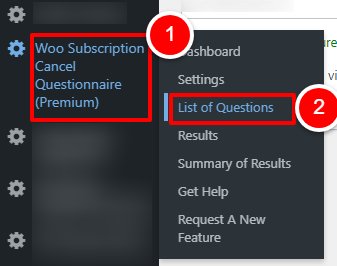
OR
Open the plugin dashboard and click the “LIST OF QUESTIONS” tab
- Click the “ADD NEW QUESTION” button
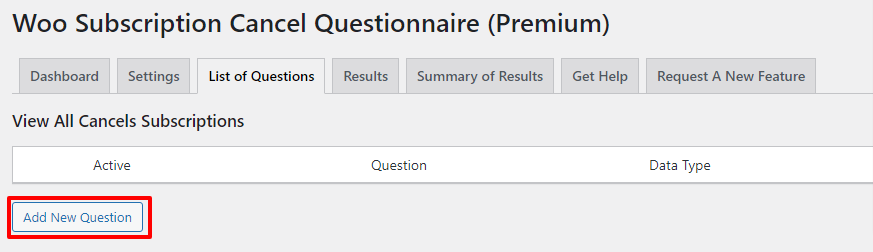
- Here you can add the details of your question

- On the same screen add each answer by pressing the ADD NEW ANSWER button

- Once you have completed the question, click SAVE

Fields Explained
- QUESTION
Add the title of the question
Example: Rate your experience with our website - REQUIRED
Make this question a required field so customers have to give an answer in order to proceed to cancel - FIELD TYPE
Choose from a range of options for different types of fields:- RADIO OPTION
A single choice answer where the customer has to pick from set options
TIP: Perfect for YES, NO, UNSURE type questions - CHECKBOX
A multi choice answer where the customer has to pick one or more options from a list
TIP: Perfect for reasons why you decided to cancel your subscription for things like time, poor website, too complicated, etc - TEXT AREA
Allows the customer free text area to write more information. This is designed for longer texts.
TIP: Perfect for the how could we have done better type questions - TEXT BOX
Allows the customer free text to write more information but not as much as paragraphs.
TIP: Perfect for did any team member stand out that helped you the most.
- RADIO OPTION
- ANSWER
You can add one or more answers easily here for RADIO OPTION or CHECKBOX fields
This part is hidden when you choose TEXT AREA or TEXT BOX.